Használati útmutató CTA Digital PAD-PARAFDC
CTA Digital nincs kategorizálva PAD-PARAFDC
Olvassa el alább 📖 a magyar nyelvű használati útmutatót CTA Digital PAD-PARAFDC (3 oldal) a nincs kategorizálva kategóriában. Ezt az útmutatót 16 ember találta hasznosnak és 2 felhasználó értékelte átlagosan 4.2 csillagra
Oldal 1/3
Premium Locking Floor Stand Kiosk w/
Digital Password Combination Security Enclosure
PAD-PARAFDC
INSTRUCTION - MANUAL
CONTENTS:
INSTALLATION:
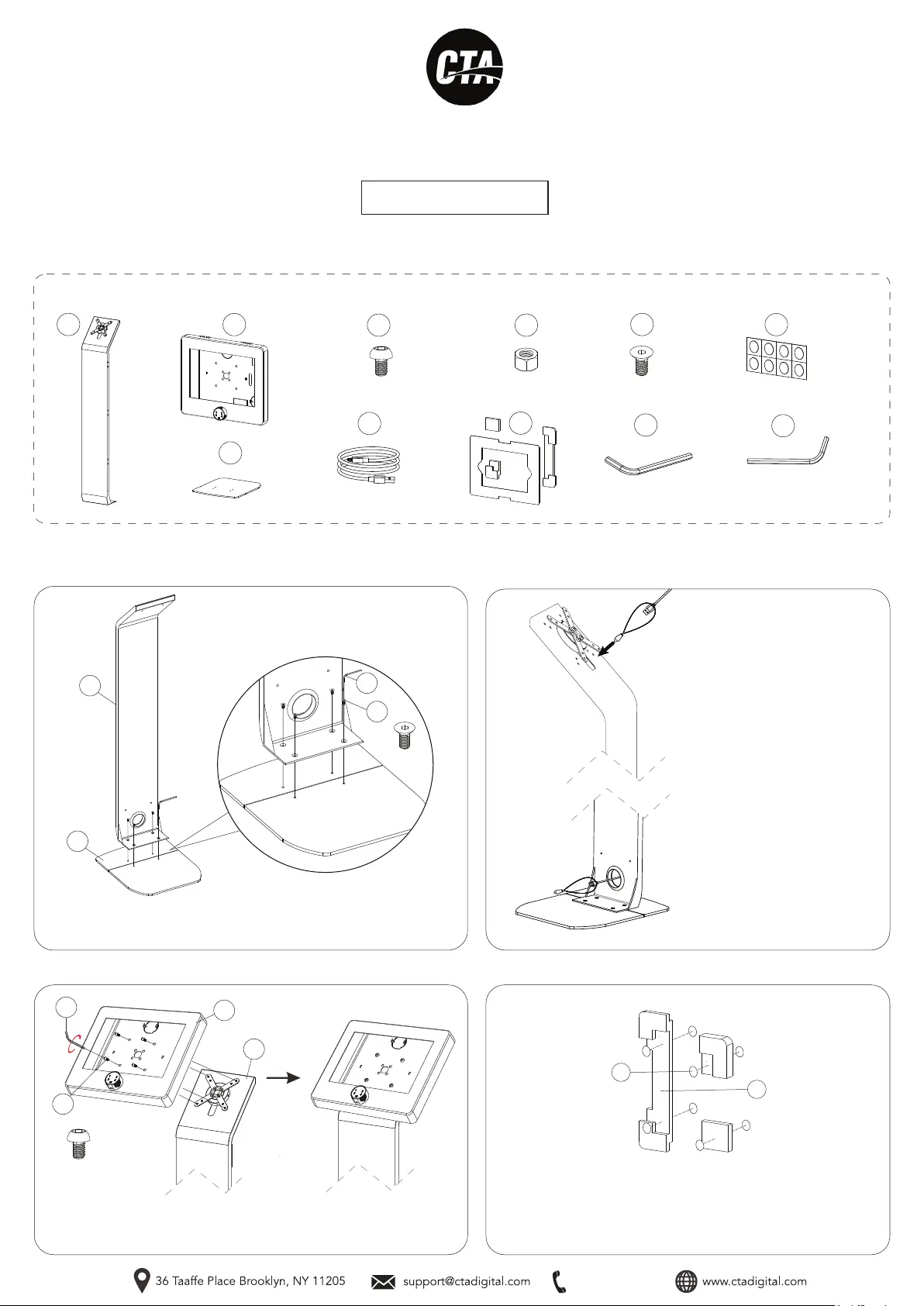
1. Assembling floorstand base :
A
J
x1
M5 Allen Key
3. Attaching enclosure to VESA plate :
1A. Allign the holes on the sntad (A) with holes on the base (B) and turn
in screws (F) with provided allen tool (K) until securely tightened. Shown
above.
2B. When the cable reaches the
bottom of the stand, pull through
the hole at the stand back and
remove the weighted pendant
as shown.
2A. To route a charge cable
through the stand, attach the
weighted pendant to your
charge cable, then pass through
the cutout at the top of the
stand.
3A. Align enclosure (C) VESA holes to VESA plate holes in stand (A) and
from the front of enclosure turn in screws (D) into the threaded VESA
holes with provided allen tool (J) until securely thigtened. Shown above.
C
x1
E
x4
M5 NutM5 x 10
D
x4
M5 x 10
x4
B
x1
x1
K
x1
M6 Allen Key
x1
I
M6 p1-x4
F
x4
M6
2. Cable routing :
C
A
J
A
B
F
K
D
G
I
4. Setting up the foam adapters :
4A. Identify the double sided adhesives (G). Peel away the backing on
both sides. Adhesive four of them behind the foam pieces (I) as
illustrated. They are to adhese the foam to the enclosure. Peel away
the back on the next four and place them on top of the foam pieces as
illustrated. These are to attach the foam to the tablets and ensure
security.
x1
H
x1
G
888-733-4448
Termékspecifikációk
| Márka: | CTA Digital |
| Kategória: | nincs kategorizálva |
| Modell: | PAD-PARAFDC |
Szüksége van segítségre?
Ha segítségre van szüksége CTA Digital PAD-PARAFDC, tegyen fel kérdést alább, és más felhasználók válaszolnak Önnek
Útmutatók nincs kategorizálva CTA Digital

6 Január 2025
28 December 2024
12 December 2024
11 December 2024
11 December 2024
11 December 2024
11 December 2024
11 December 2024
11 December 2024
11 December 2024
Útmutatók nincs kategorizálva
Legújabb útmutatók nincs kategorizálva
10 Április 2025
10 Április 2025
10 Április 2025
9 Április 2025
9 Április 2025
9 Április 2025
9 Április 2025
9 Április 2025
9 Április 2025
9 Április 2025